Aibex User Guide
Everything you do in Aibex, from getting started to troubleshooting, on one page.
1. Introduction
Aibex is a Mac app for handing work to Claude Code and reading what it answers and changes. You open each working folder in its own tab and talk to the AI per tab.
1.1 What you need
- An Apple silicon Mac with macOS 26 or later
- node 22.15 or later (on 23.x, 23.5 or later)
- pnpm (used once, on first launch, to fetch the AI runtime)
- claude (Claude Code), already signed in
When it starts, Aibex reads your terminal's PATH from your login shell and looks for node, claude, and pnpm there first. If they aren't there, it looks in ~/.local/bin, /opt/homebrew/bin, and /usr/local/bin, in that order. If you set an environment variable (AIB_NODE, AIB_CLAUDE_BIN, AIB_PNPM_BIN) to a tool's location, that comes first of all. If a tool runs in your terminal, Aibex finds it too.
1.2 Parts of the window
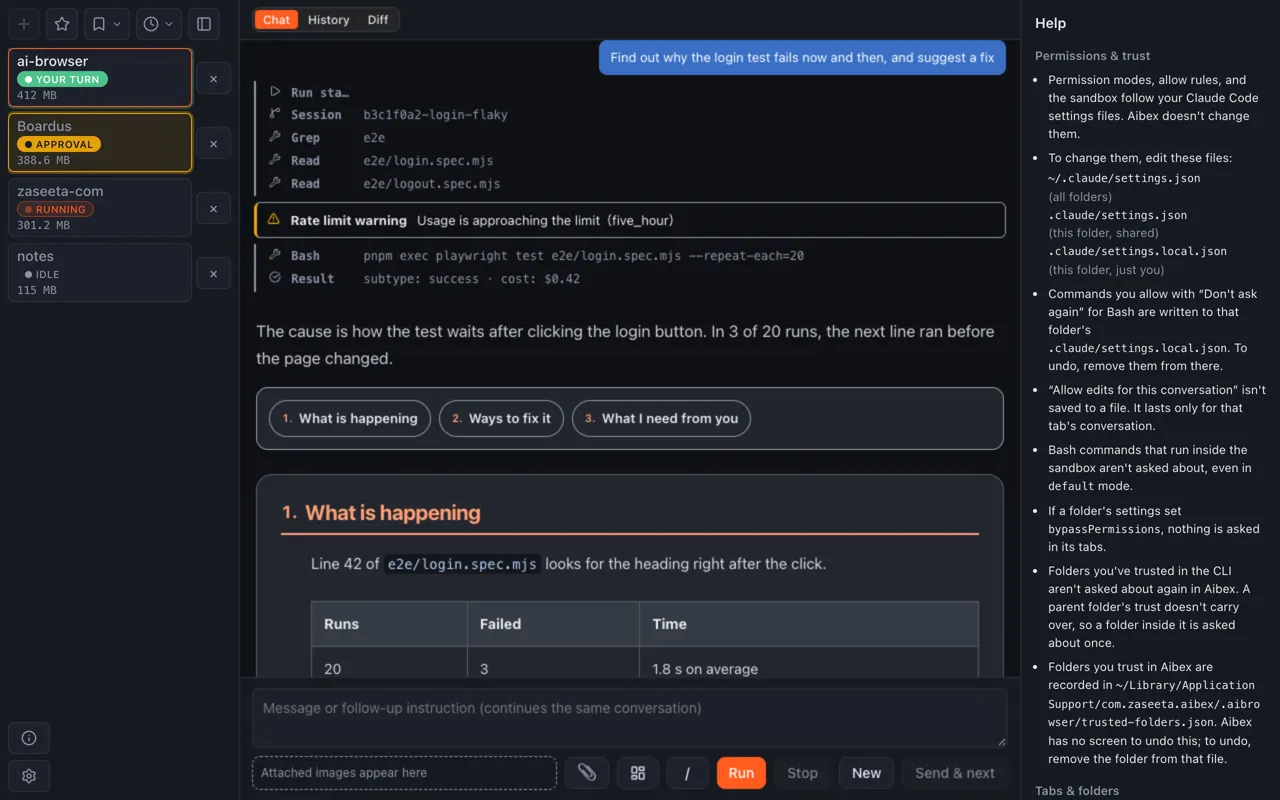
- New tab, bookmarks, recent folders, and the tab width toggle
- Vertical tabs, one per working folder. The badge shows what the tab's AI is doing
- Switch between Chat, History, and Diff. The usage limits (5h, Week) appear at the right end
- The conversation: your messages, the AI's answers, and a record of what it ran
- The input box
- Attach, Screenshot, AI settings, Run, Stop, Clear, and Send & next
- The help panel
- Show or hide the help panel, and Settings
1.3 The beta and the version this guide covers
Aibex is a free beta. Each beta build stops working 90 days after it was built. From 14 days before that, a banner at the top of the window tells you the date (10.2).
This guide matches the version named at the top. If a newer version looks different, the newer version is right.
2. Getting started
2.1 Install
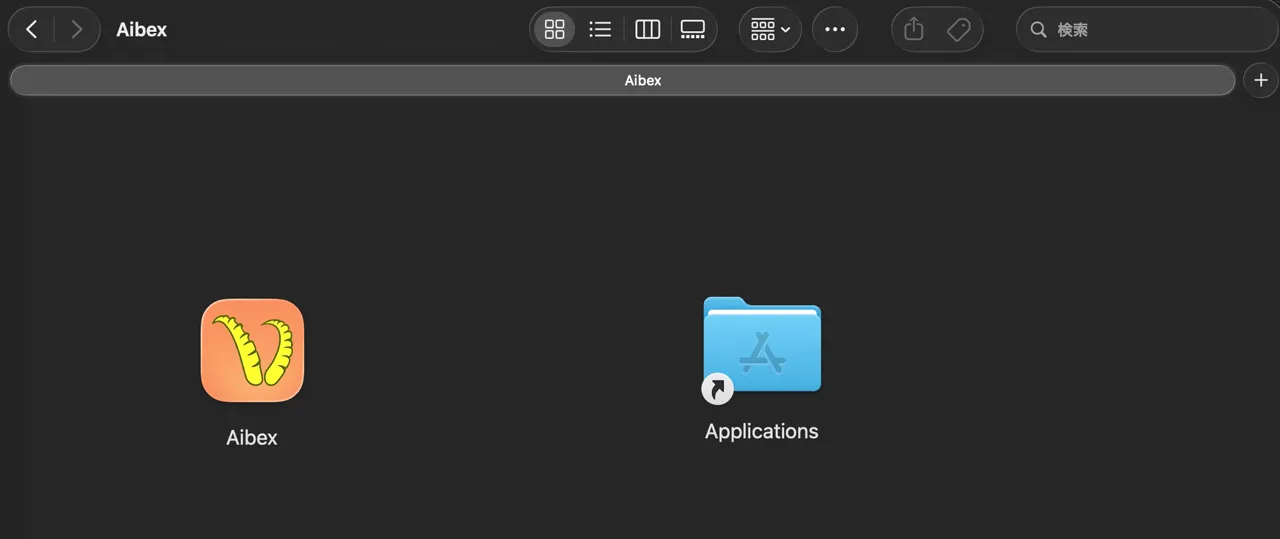
Download the DMG from the release page on GitHub, open it, and drag the Aibex icon onto Applications on the right.
2.2 First launch
On first launch, Aibex checks the following in order. If something is missing, a guidance screen or a dialog appears at that step.
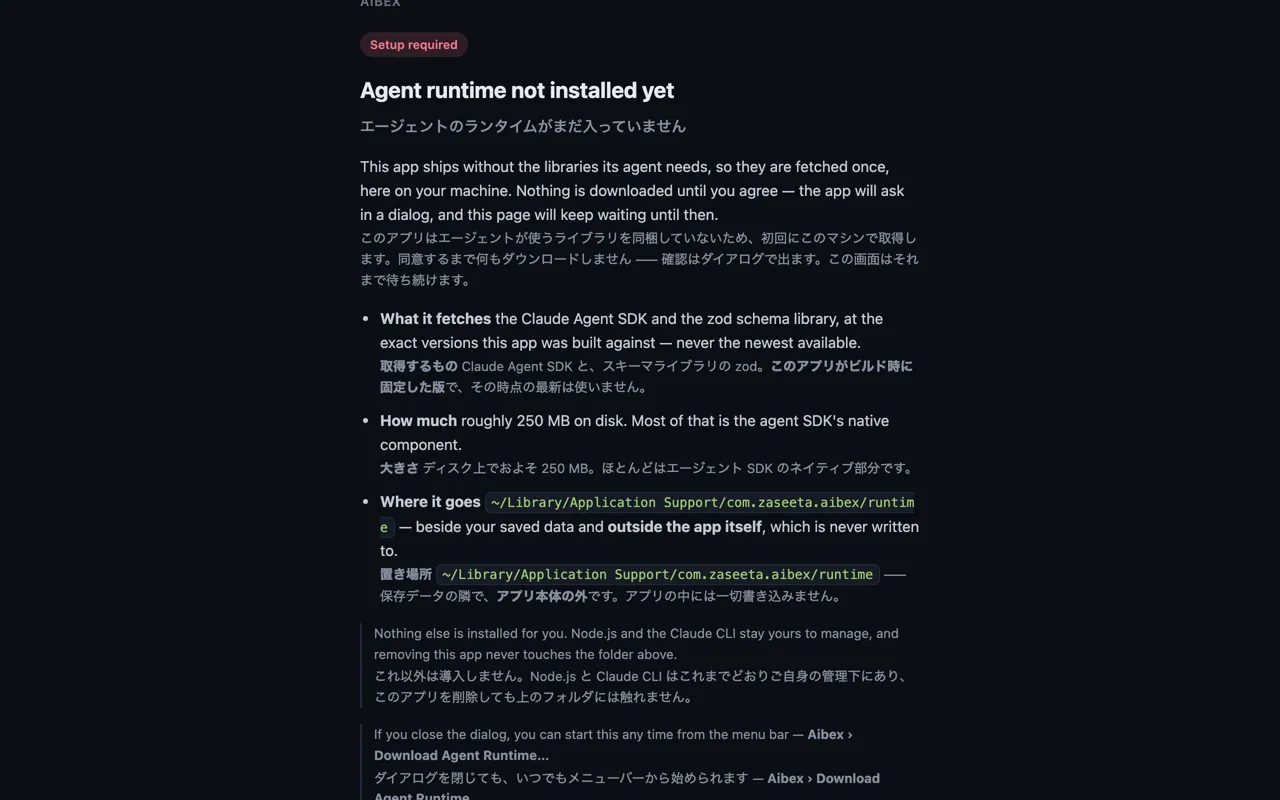
The runtime in step 2 is the library that runs the AI (the Claude Agent SDK and zod). It is not inside Aibex; Aibex fetches it onto your Mac on first launch, after asking with this dialog.
Download the agent runtime now? About 250 MB goes to:~/Library/Application Support/com.zaseeta.aibex/runtime
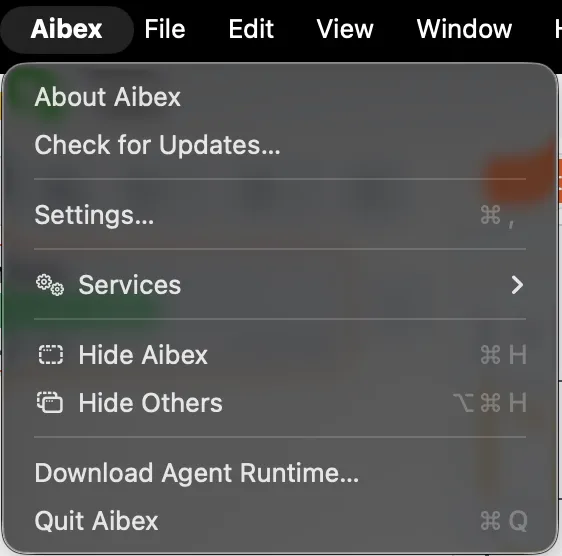
Nothing is downloaded until you agree. If you close the dialog, you can start it later from the menu: Aibex › Download Agent Runtime…
What each guidance screen means is in 11.1 Startup guidance.
2.3 Open your first tab
With no tabs open, the middle of the window shows a prompt. Click New tab, or the + at the top left, and choose a working folder (3.1).
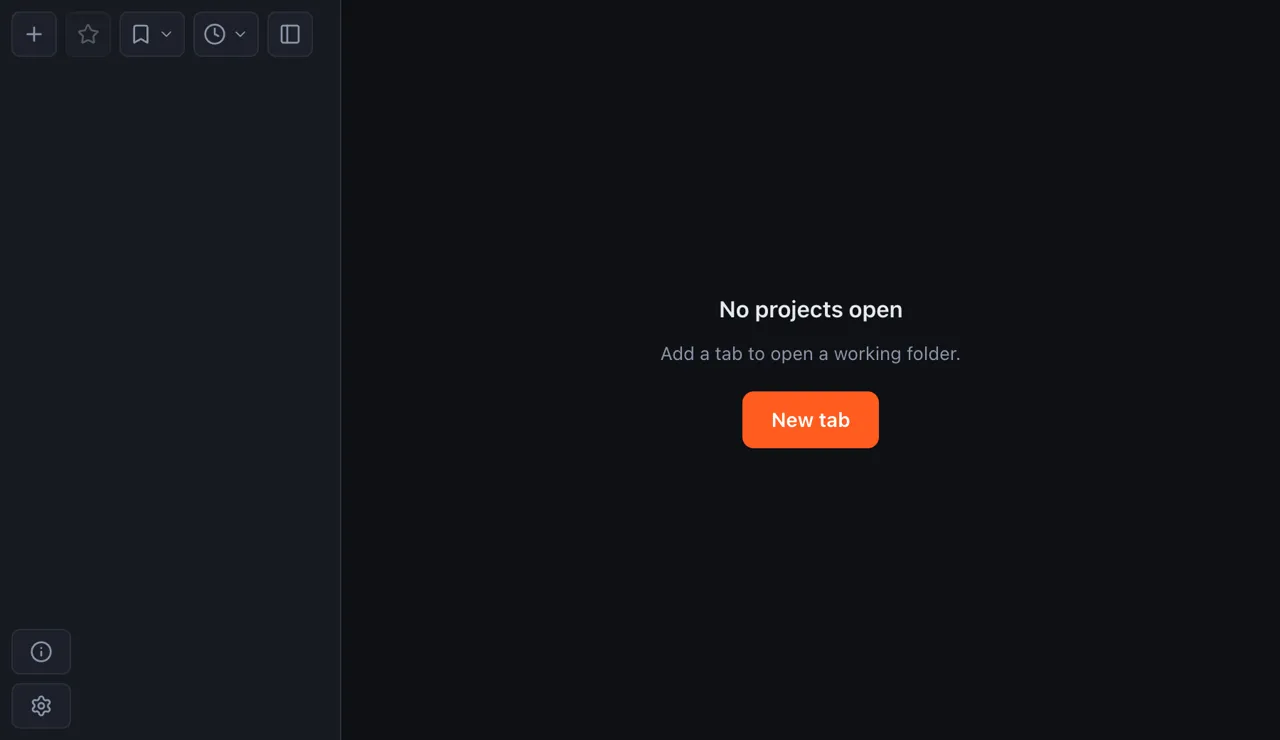
- New tab
- New tab (+). Use this when tabs are already open, too
2.4 Trust the folder
The first time you open a folder, Aibex asks whether you trust it. If you do, the folder's CLAUDE.md and settings take effect in Aibex. You won't be asked again for that folder.
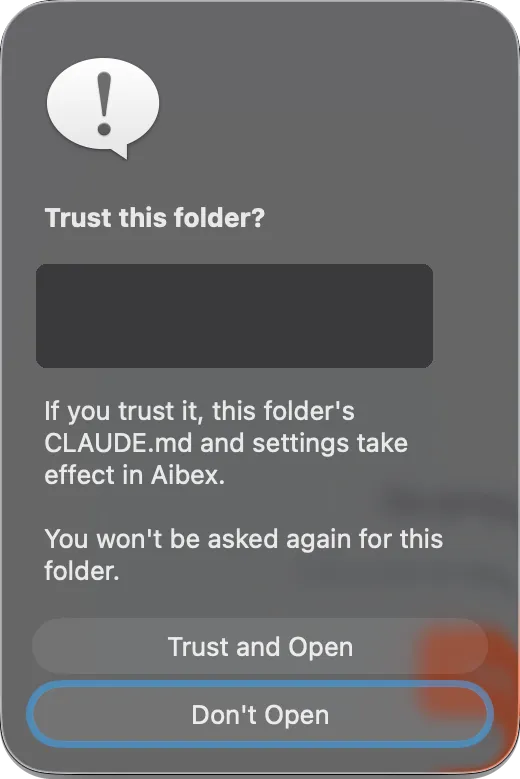
- Folders you've trusted in the Claude Code CLI aren't asked about. A parent folder's trust isn't inherited, so a folder inside it is asked about once
- Trusted folders are recorded in
~/Library/Application Support/com.zaseeta.aibex/.aibrowser/trusted-folders.json. Aibex has no screen for undoing trust; remove the folder from that file instead
2.5 Your first message
Type what you want done and send it with Run or ⌘Enter. The files the AI reads and the commands it runs scroll by as records, and the answer appears when it finishes. Whatever you type next continues the same conversation.
3. Opening folders
3.1 Choose with the column browser
Clicking + opens the column browser for choosing a working folder. The parent folder is on the left, the current folder in the middle, and the subfolders of the selected folder on the right.
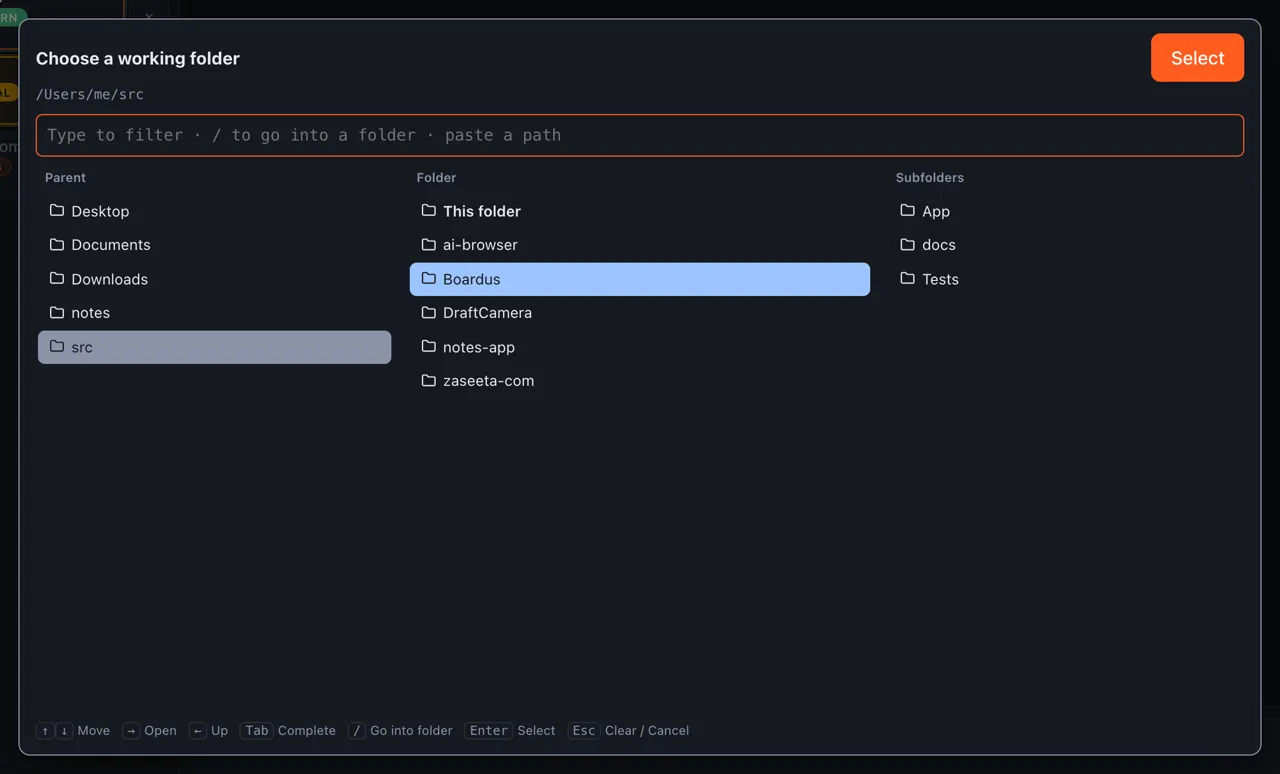
- The input field. Type to filter, and press / to go into the selected folder. You can also paste a path
- The parent folder. The folder you're in is marked
- The current folder, with the selected row
- The subfolders of the selected folder
- The key guide
| Key | Action |
|---|---|
| ↑ ↓ | Move |
| → | Open |
| ← | Up |
| Tab | Complete |
| / | Go into folder |
| Enter | Select (open the selected folder in a tab) |
| Esc | Clear / Cancel |
You can open up to 4 tabs. With 4 open, clicking + shows "Tab limit reached (up to 4)." and opens nothing.
3.2 Bookmarks
For folders you use often, bookmark the current tab's folder with the ☆ at the top left. You can then open it in one click from the button to its right.
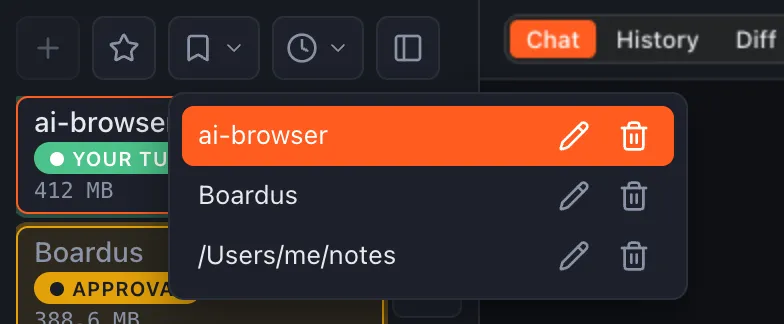
- A bookmark. Click it to open the folder in a tab
- Rename, or remove from bookmarks
3.3 Recent folders
The clock button lists the folders you opened recently. Folders already in your bookmarks don't appear here.
4. Using tabs
4.1 Vertical tabs and status badges
Open folders line up vertically on the left. The badge shows the state of that tab's AI.
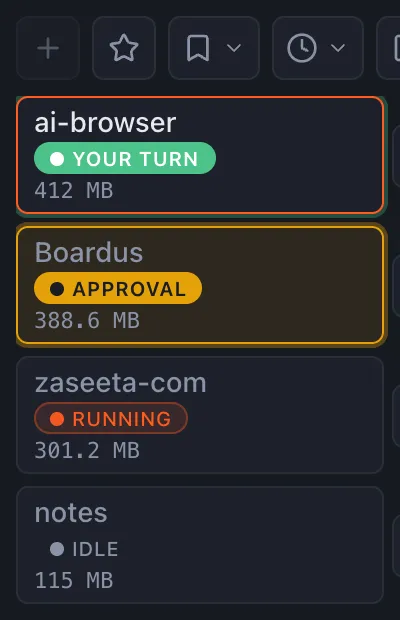
- Your turn. The answer is done
- Approval. The AI is waiting for your permission (5.7)
- Running
- Idle
Below the badge, the tab shows its memory use and Ctx: how much of the AI's context window the conversation uses. Ctx turns ochre at 70% and red at 90%. When it turns red, clearing the conversation and starting fresh is a good idea (5.1).
4.2 Narrow the tabs
The rightmost button at the top left (Toggle tab width) narrows the tabs. When narrow, badges become colored dots, and you see a tab's folder by hovering over it.
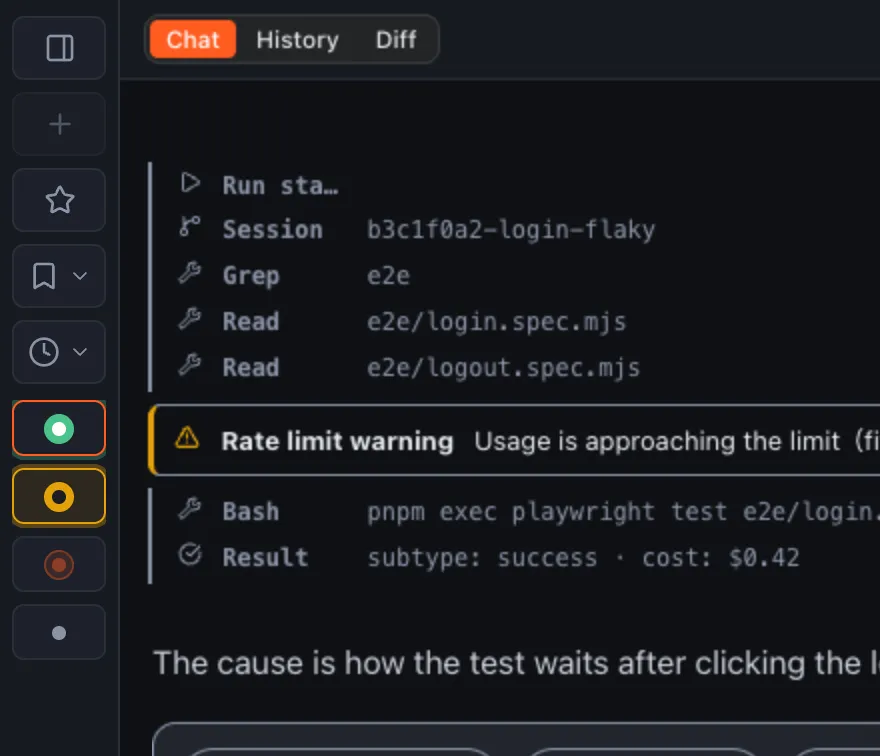
- The badge dots (green for Your turn, yellow for Approval, a pulsing dot in the accent color (orange by default) for Running, gray for Idle)
4.3 Send & next
When several tabs are working for you, Send & next (⇧⌘Enter) sends in the current tab and then moves you to the next tab whose turn it is (not for messages that start with !). It's available only while another tab is waiting for your turn.
4.4 Close a tab
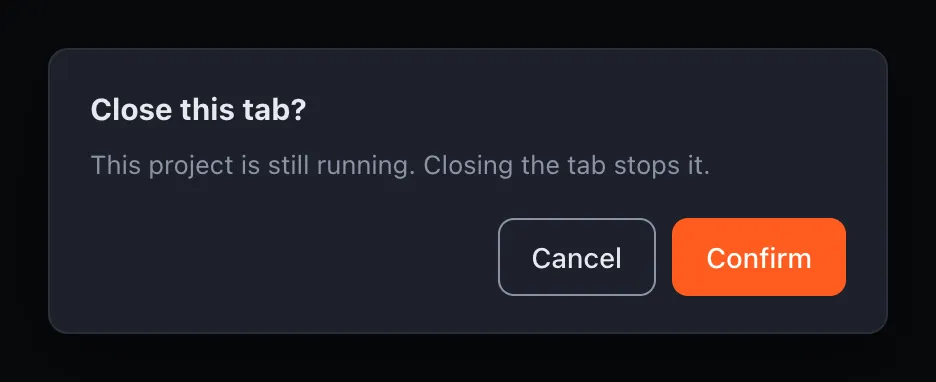
Close a tab with the × to its right. If the tab is running or waiting for approval, Aibex asks first; closing stops that tab's AI.
4.5 The completion beep
When any tab changes to Your turn, Aibex beeps once. To turn it off, clear "Beep when a run finishes" under Language & notifications in Settings.
5. Talking to the AI
5.1 The input box and buttons

- The input box. ⌘Enter sends. After that, what you send continues the same conversation
- Attach image (5.2)
- Take screenshot and attach (5.3)
- AI settings (5.8)
- Run (send)
- Stop the running AI
- Clear the conversation, so the next message starts a new one (⌘N)
- Send & next (4.3)
Clear removes the conversation and the diff from the window, but the conversation stays in History (6.4).
Since 0.3.0, a microphone button sits to the right of the screenshot button (5.4). Figures 1-1 and 5-1 show the 0.2.1 window, so it isn't in them yet.
5.2 Attach images
Attach images with the paperclip button, by pasting into the input box, or by dropping them on it. Attached images line up small below the input box; remove one with its ×.

- Attached images
- Lines chosen in the diff (7.3)
- Attach image
You can attach PNG, JPEG, GIF, and WebP images, up to 5 MB each and 4 per message.
5.3 Attach a screenshot
The screenshot button (⇧⌘S) takes a screenshot and attaches it. Drag to select an area, press Space to pick a window, or press Esc to cancel. You can also right-click the input box and choose "Take screenshot and attach".

- Take screenshot and attach
- How to capture
5.4 Push to talk
Hold the microphone button below the input box (to the right of the screenshot button) and speak. Your words appear in the input box as you talk, and listening stops when you let go. Nothing is sent: you read it over, edit it and send it yourself.
From the moment you press until the microphone is open, a bubble above the button says "Preparing…". Some microphones, such as an iPhone used as the Mac's microphone, take about a second to open, and anything said before that is lost. Start talking when it says "Go".
If the cursor is in the input box, the words go where the cursor is and replace any selection; otherwise they are added at the end. A quick press and release shows "Hold the button while you speak".
Hold Esc: hold Esc for 0.4 seconds to talk into the selected tab without reaching for the mouse, and let go to stop. A quick press of Esc still closes things as before.
When a line comment box is open in the diff, it has its own microphone button, and holding Esc writes into that box (7.4).
Aibex listens in its display language (5.10): Japanese when Aibex is shown in Japanese, English otherwise.
Speech is recognized on the Mac by macOS 26's own speech recognition, and neither the audio nor the text leaves the Mac. The first time, macOS asks whether Aibex may use the microphone, and the speech model for the language is downloaded from Apple once; meanwhile Aibex shows "Preparing speech recognition (first time only)…". After that, recognition works offline. If Aibex can't listen, the reason and how to fix it appear below the input box (11.4).
5.5 Slash commands
Type / at the start of a message to see Claude Code's commands. Move with ↑ ↓ and accept with Enter or Tab. The list and its descriptions come from Claude Code.
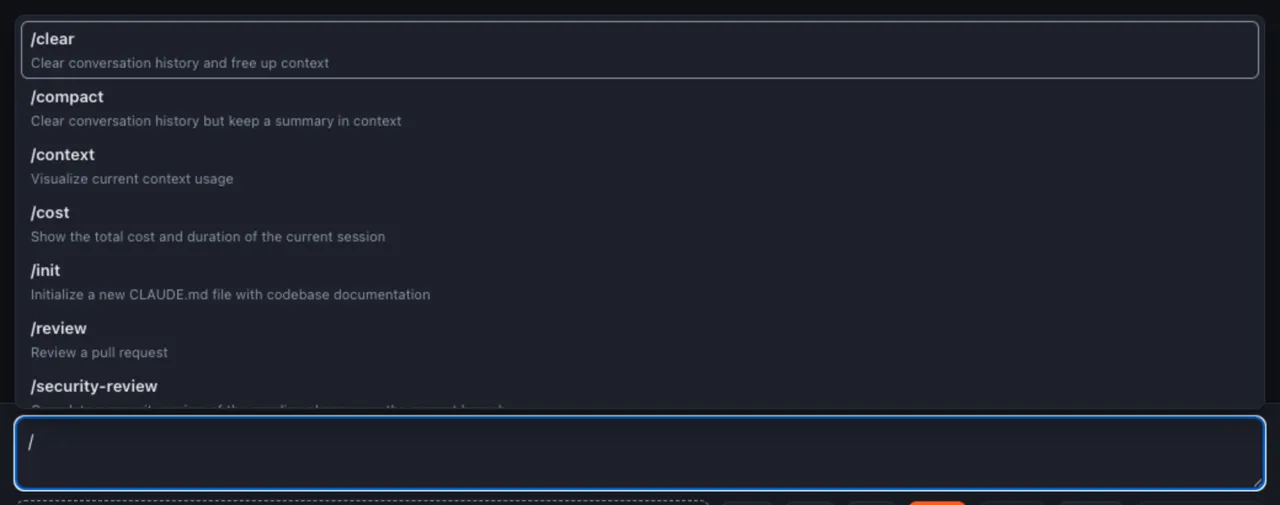
- The selected suggestion
5.6 Word completion
File names and commands that appeared in this conversation are suggested after you type two characters. Accept with Tab, dismiss with Esc. Only words made of Latin letters and digits are suggested.
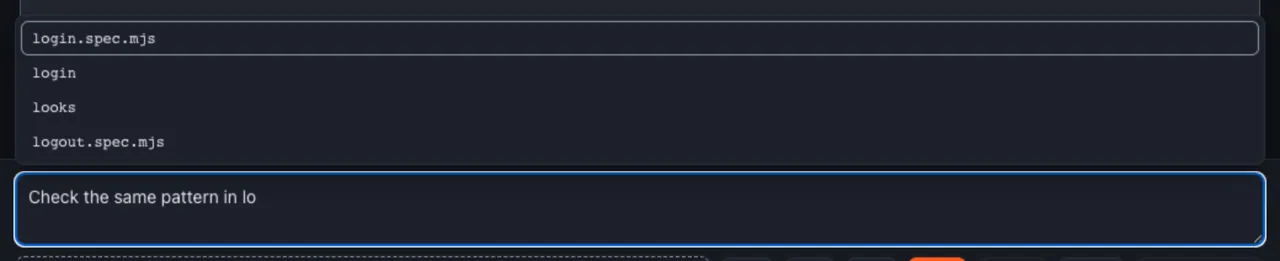
- Suggestions
5.7 Approving actions
Before the AI runs a command or changes a file, it may ask for your permission. The tab's badge changes to "Approval" and a bar appears above the input box.
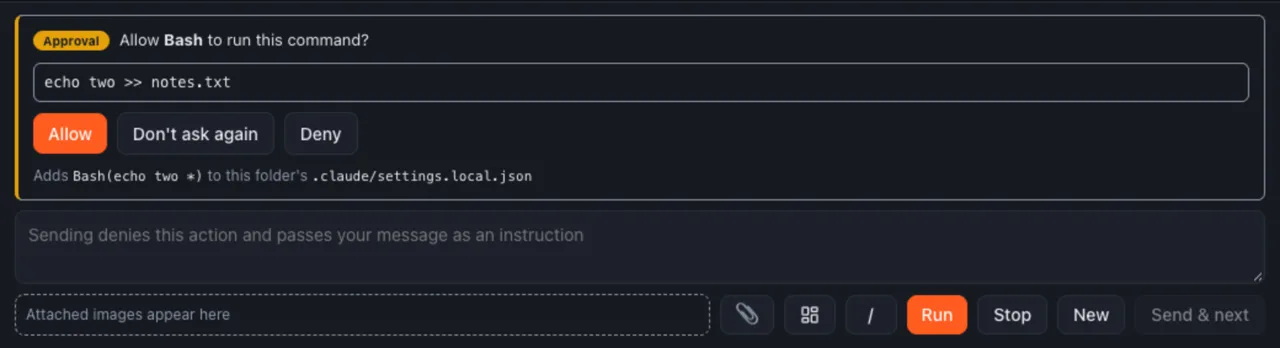
- What the AI wants to do (here, run Bash)
- The command it wants to run
- Allow, Don't ask again, and Deny (for file edits, "Allow edits for this conversation" takes the place of Don't ask again)
- The rule that "Don't ask again" adds, and the file it writes to
- Type here and send to deny this action and pass your text on as an instruction
Which actions need your permission follows Claude Code's settings files. Aibex does not change them (see "Permissions & trust" in the help panel).
5.8 AI settings
The / button below the input box sets up the AI for your next message. Changes take effect from the next send.
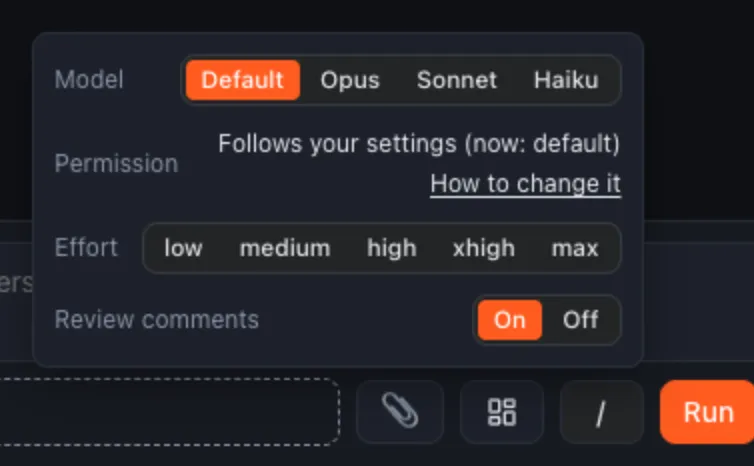
- Model. Default follows your Claude Code settings
- Permission mode. Shows the mode your settings files chose; it can't be changed here
- Effort (low to max)
- Review comments. When on, the AI leaves comments on its changes (7.5)
5.9 Usage limits
At the right end of the Chat / History / Diff row, Aibex shows how much of your Claude usage limits you've used: 5h is the 5-hour limit and Week the weekly one. The figures are Aibex's estimates; they read 0% until the first estimate arrives and again after a limit resets.
5.10 Display language
Switch between English and Japanese under Language & notifications in Settings. Default follows your Mac's language. The AI is also asked to answer in the language you choose.
6. Reading answers
6.1 How an answer is laid out
An answer is split into numbered sections at its headings, with a table of contents at the top. The files the AI read and the commands it ran sit on a separate tier, one line each, apart from the answer itself.
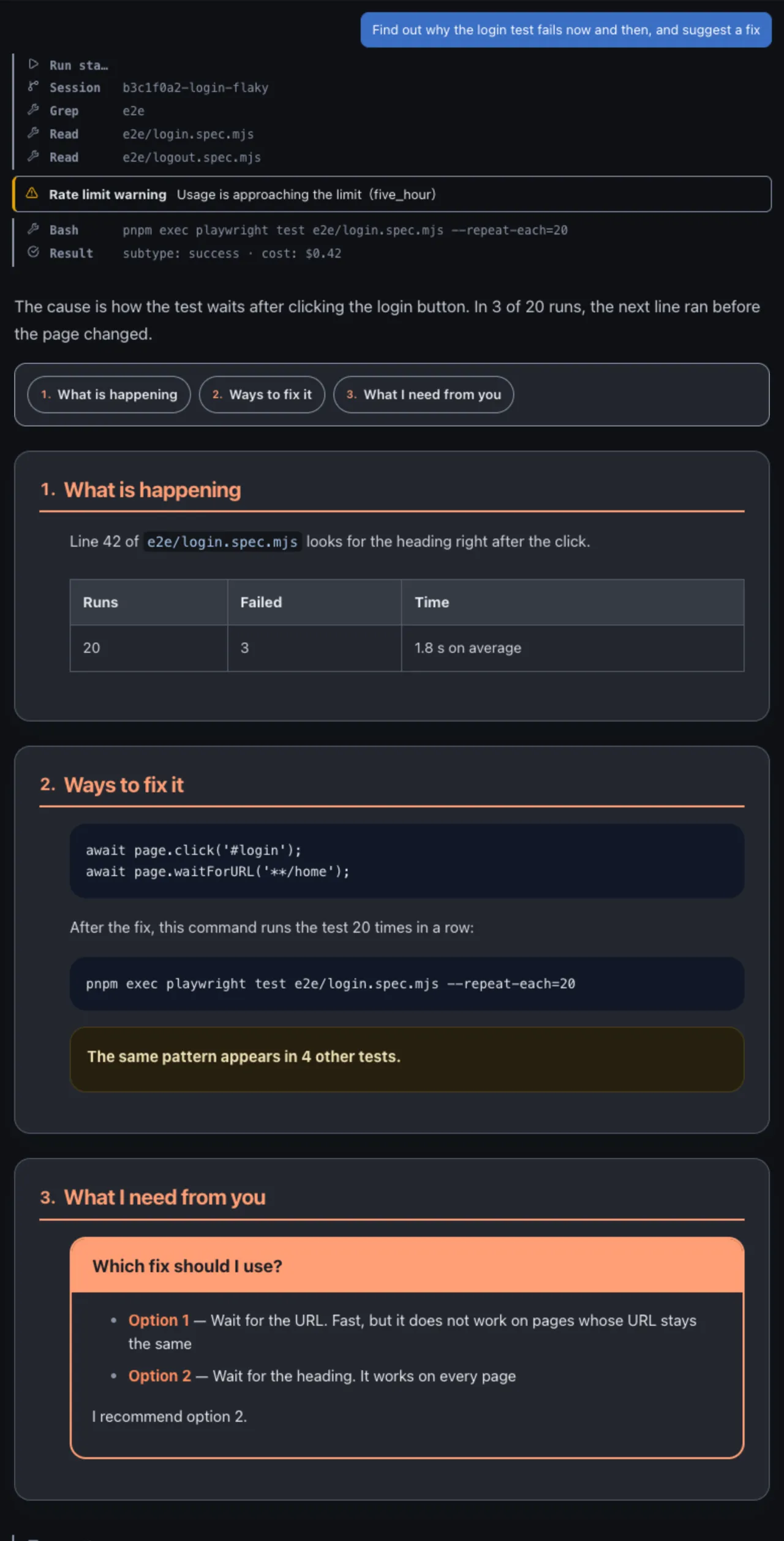
- The record tier: files read, commands run, and the result
- The attention tier: errors, rate limits, and other things to notice
- The lead: the paragraph before the first heading, with the conclusion
- The contents. Click to jump to a section
- A section, numbered at its heading
- A question frame: where the AI asks you to decide, with options and a recommendation
Short answers without headings appear as they are, without sections or contents.
6.2 While the AI is working
While the AI works, "Working on a reply…" and the elapsed time appear below the conversation. While it waits for your approval, the line reads "Waiting for your approval". Click Stop to stop it.
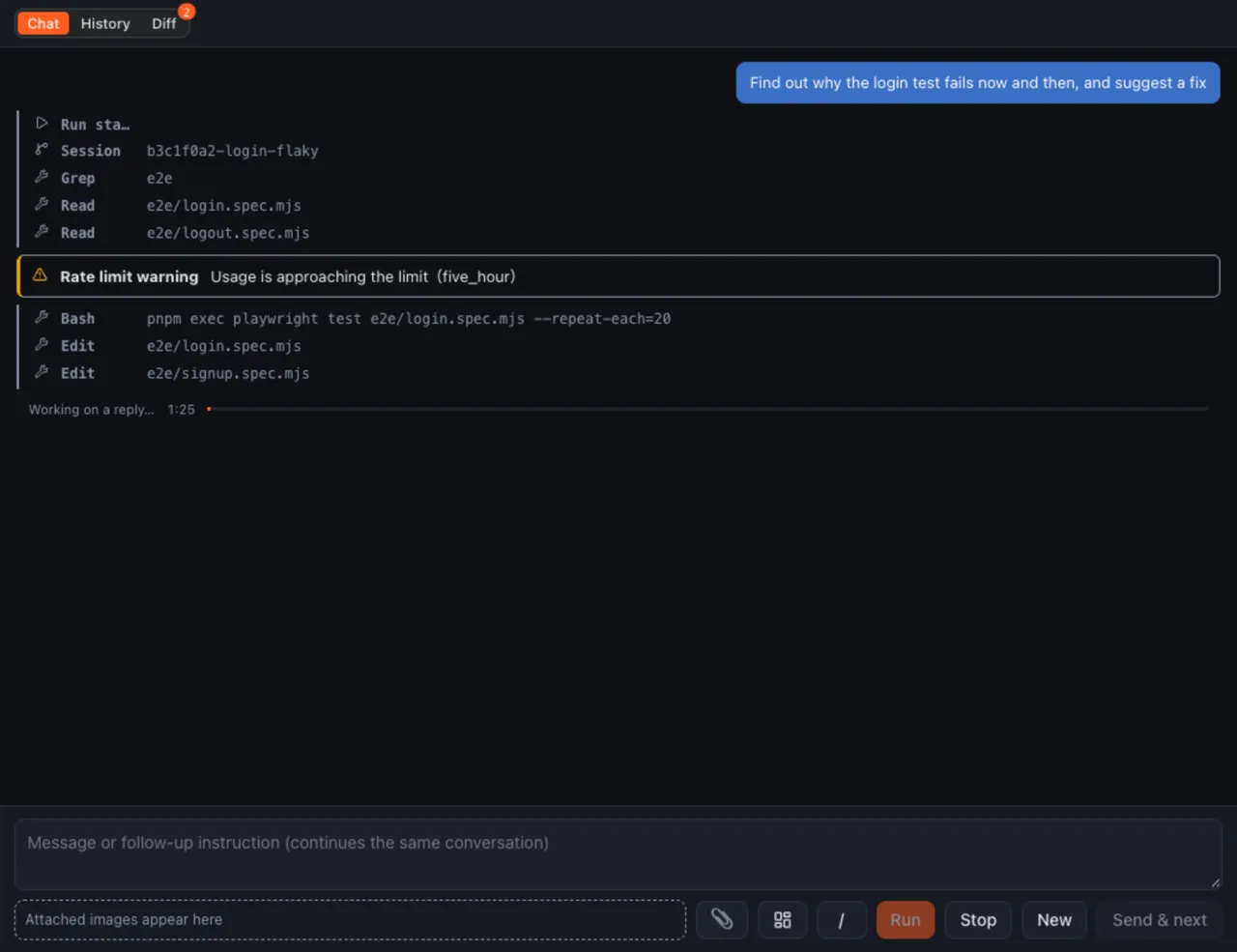
- The unread count on Diff (7.1)
- The running strip and elapsed time
- Stop
6.3 How the view follows
If you were waiting at the bottom, then when the answer finishes, your message and the start of the answer line up at the top of the window. If they don't both fit, the start of the answer goes to the top. While you've scrolled up to read, new lines arriving below don't move the view.
An ordinary chat
When the answer finishes
The screen sits at the end of the answer. To start reading, you scroll up to find where it begins.
Aibex
When the answer finishes
When the answer finishes, your message and the start of the answer line up at the top. You read from the beginning without going back.
If the answer is too long for one screen, its start is lined up at the top.
Aibex
While you read further up
New lines arrive below, but the screen does not move. You are not pulled away from where you are reading.
6.4 History and search
Switch to History to see the conversations held in this tab's folder. Type words in the field at the top to narrow the list to conversations containing them; the matches are marked.
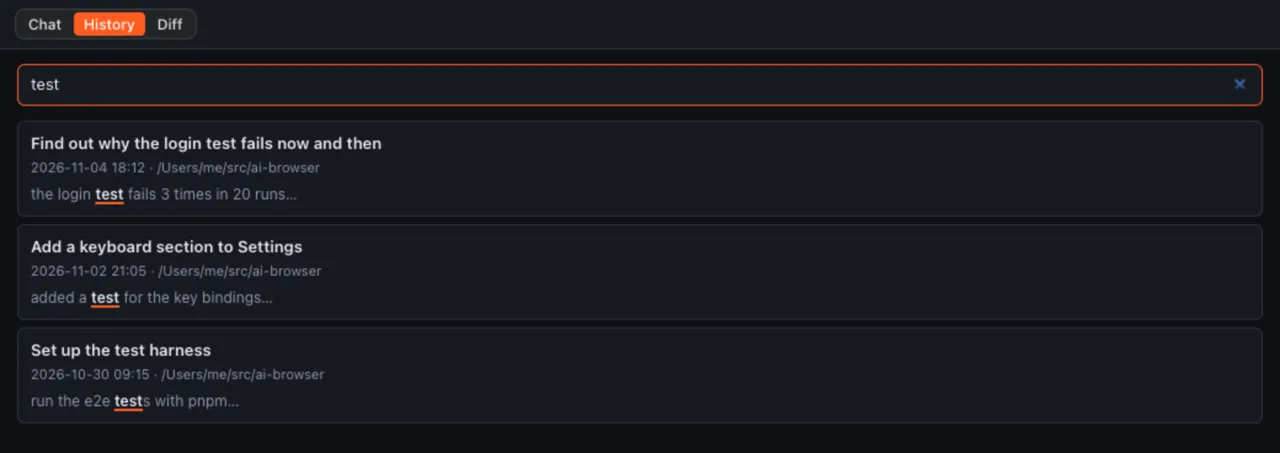
- The search field
- A conversation. Click to open it
- Where the words matched
An opened conversation is read-only; you can't continue it. "Back to list" returns to the list.
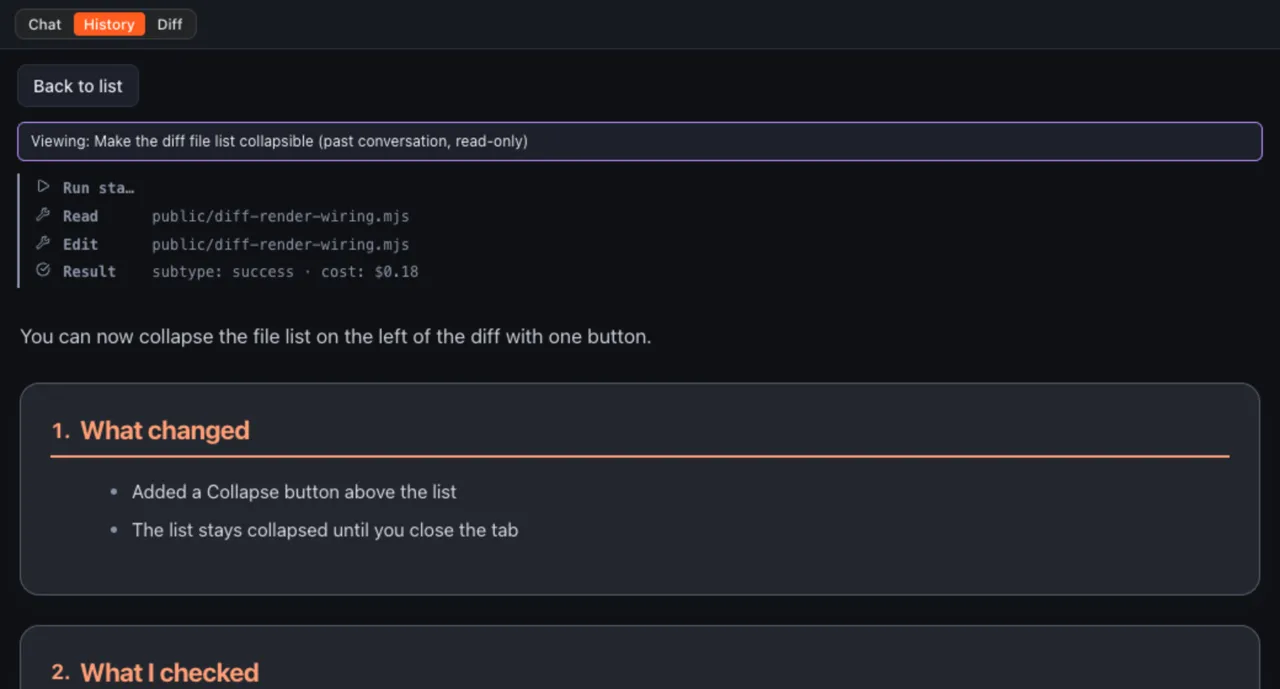
- Back to list
- The title of the conversation you're reading (read-only)
7. Checking changes
7.1 The diff
Switch to Diff to see what the AI changed: the changed files on the left and the changed lines on the right. Choose Split or Stacked at the top.
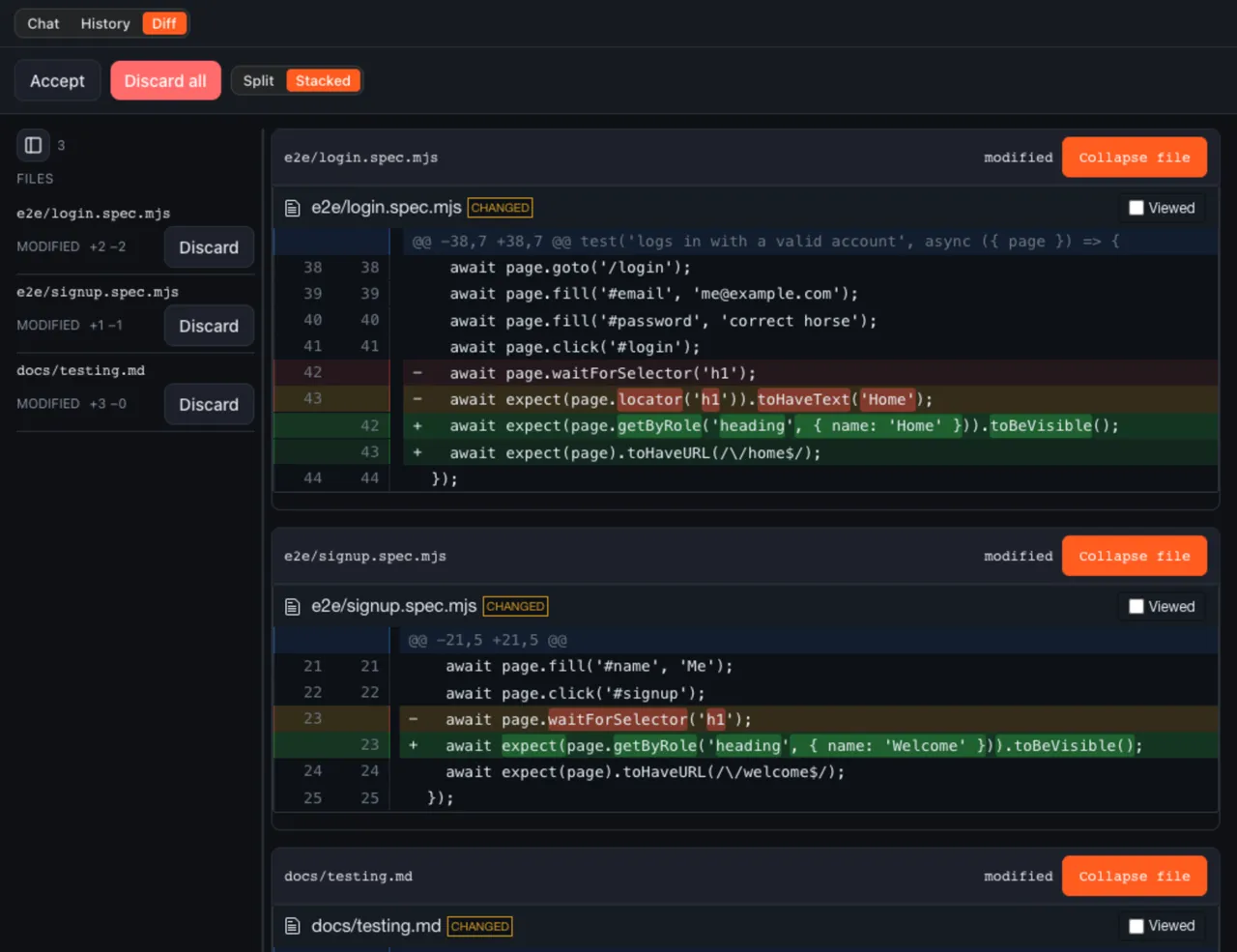
- The changed files
- Added lines (green) and removed lines (red)
- Accept
- Discard all
If the AI edits files while you're looking at Chat or History, Diff shows the number of files you haven't seen yet (Figure 6-2). Opening Diff clears it.
7.2 Accept and discard
- Accept: keeps the changes in the working tree as they are. Nothing is committed
- Discard (on a row of the file list): undoes that file's changes
- Discard all: undoes every change in the diff
If the folder already had uncommitted changes before you sent, the diff mixes them in, and discarding undoes them too. The conversation says so in a Notice.
7.3 Attach lines to a question
Drag over the line numbers in the diff to select lines. "Attach to question" adds them as a chip below the input box (Figure 5-2), and they go to the AI with your next message.
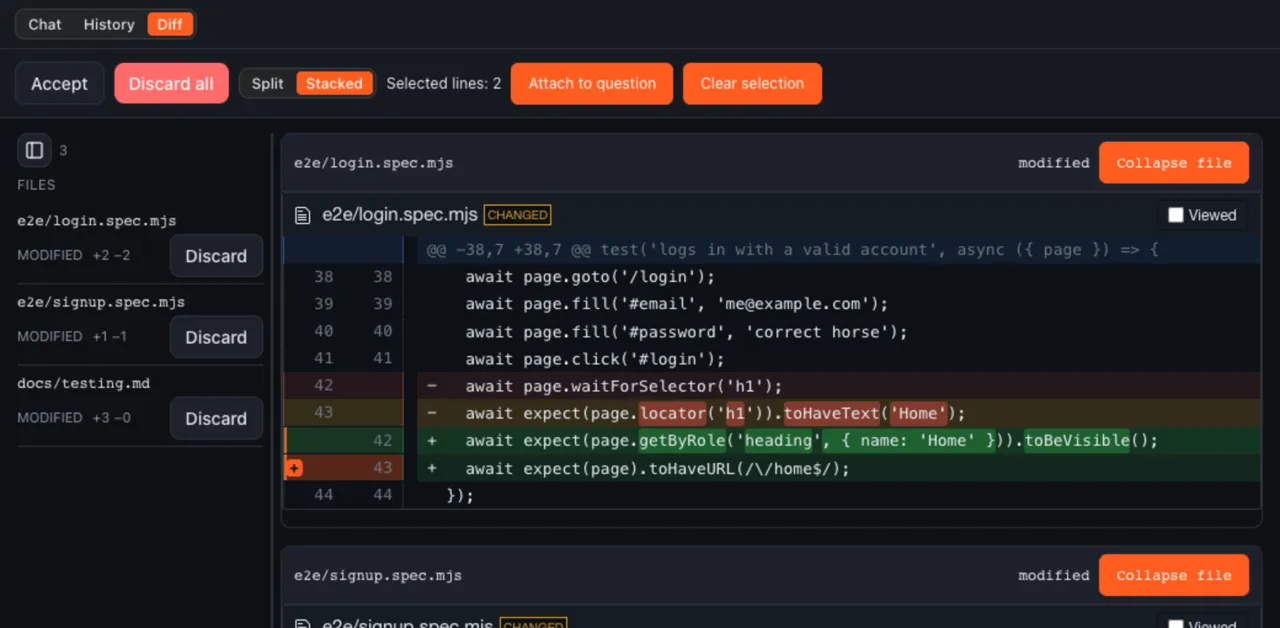
- The selected lines
- Attach to question
7.4 Line comments
Click the left edge of a line number to open a comment box under that line. Write your comment and click Send; it goes to the AI as an instruction about that line. You can also hold the box's microphone button and speak (5.4; figure 7-3 shows the 0.2.1 window, so the button isn't in it yet).
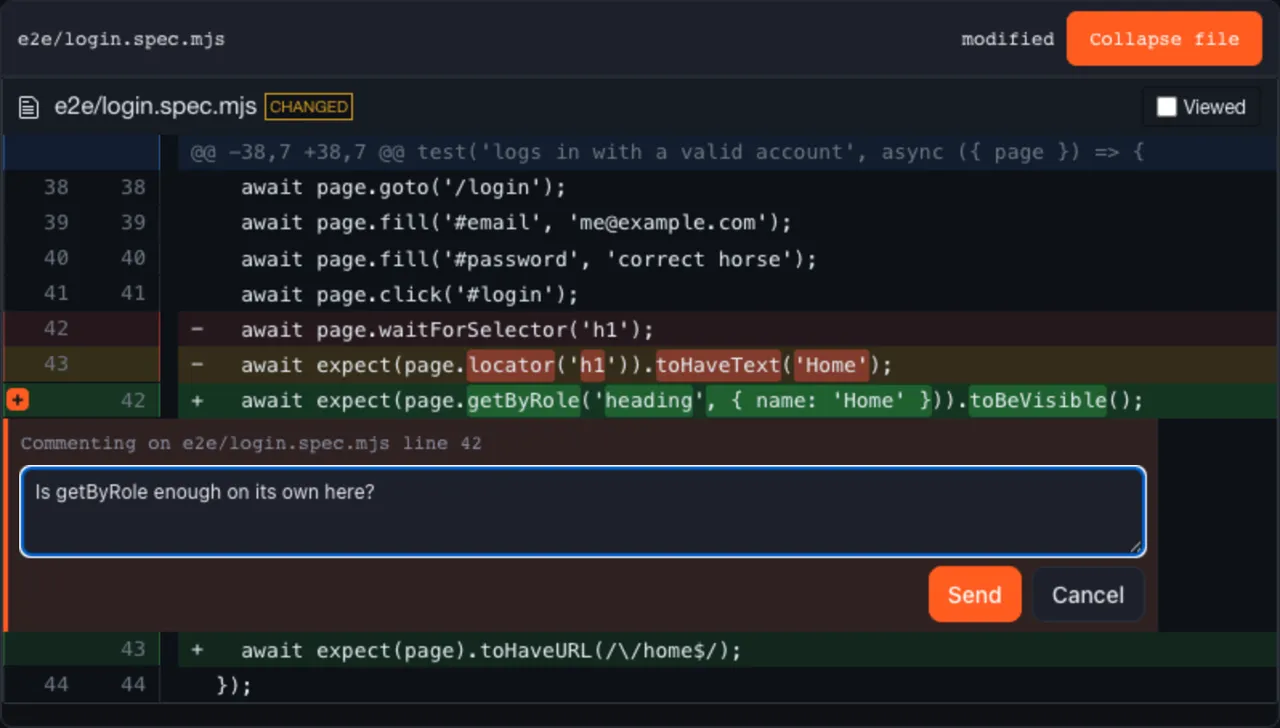
- Which file and line the comment is about
- Send
7.5 Review comments
With review comments turned on in AI settings (5.8), the AI may leave notes on its own changes. They appear both under the line in the diff and in the conversation.
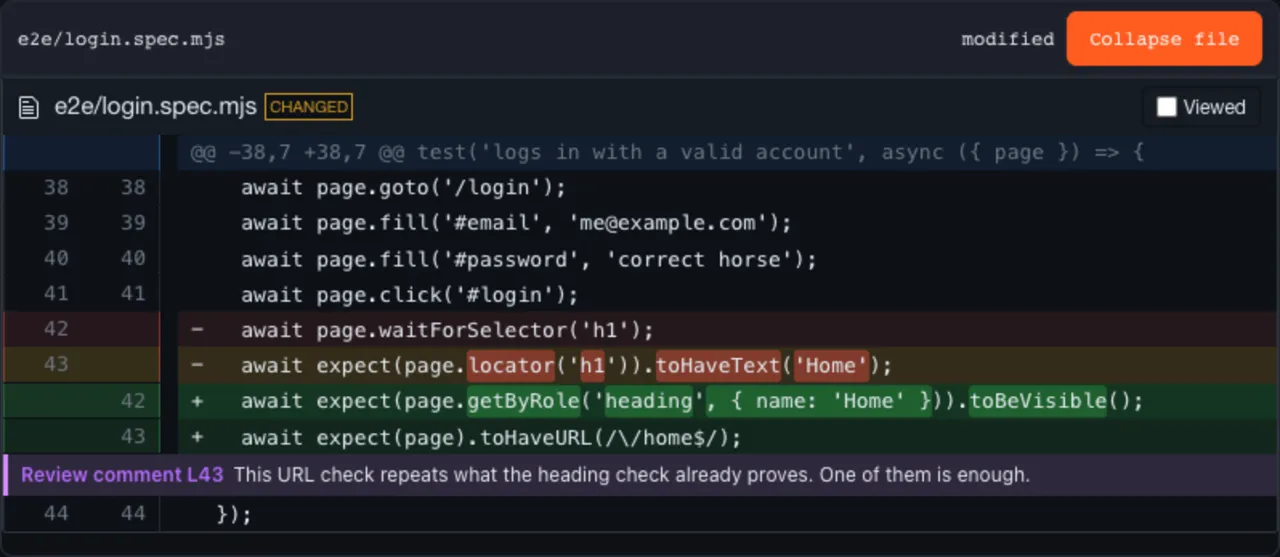
- The review comment
7.6 Folders that aren't git repositories
In a folder that isn't a git repository, there's no diff, and Accept and Discard aren't available. The diff reads "Diff unavailable (not a git repository)".
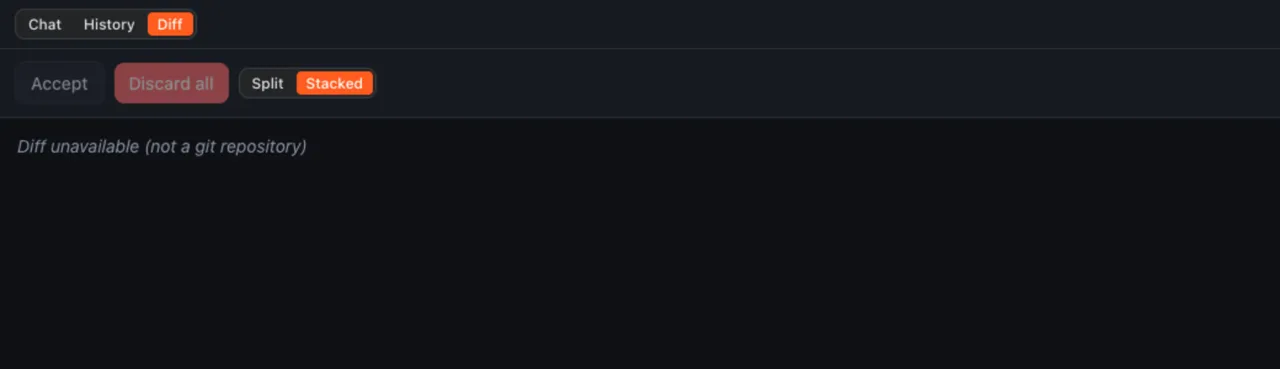
- The notice that no diff can be shown
8. Running in the terminal
8.1 Start with !
Start a message with ! to run it as a command in the tab's folder, without the AI. The output and exit code appear in the conversation.

- The command that ran
- The exit code
These commands run with the same PATH as your terminal: the one Aibex read from your login shell when it started.
8.2 Run selected text
Select a command in an answer, right-click, and choose "Run in terminal" to run it as is.

- The selected command
- Run in terminal
9. Settings and help
9.1 The Settings screen
Open Settings with the gear at the bottom left (⌘,). Settings has six sections.
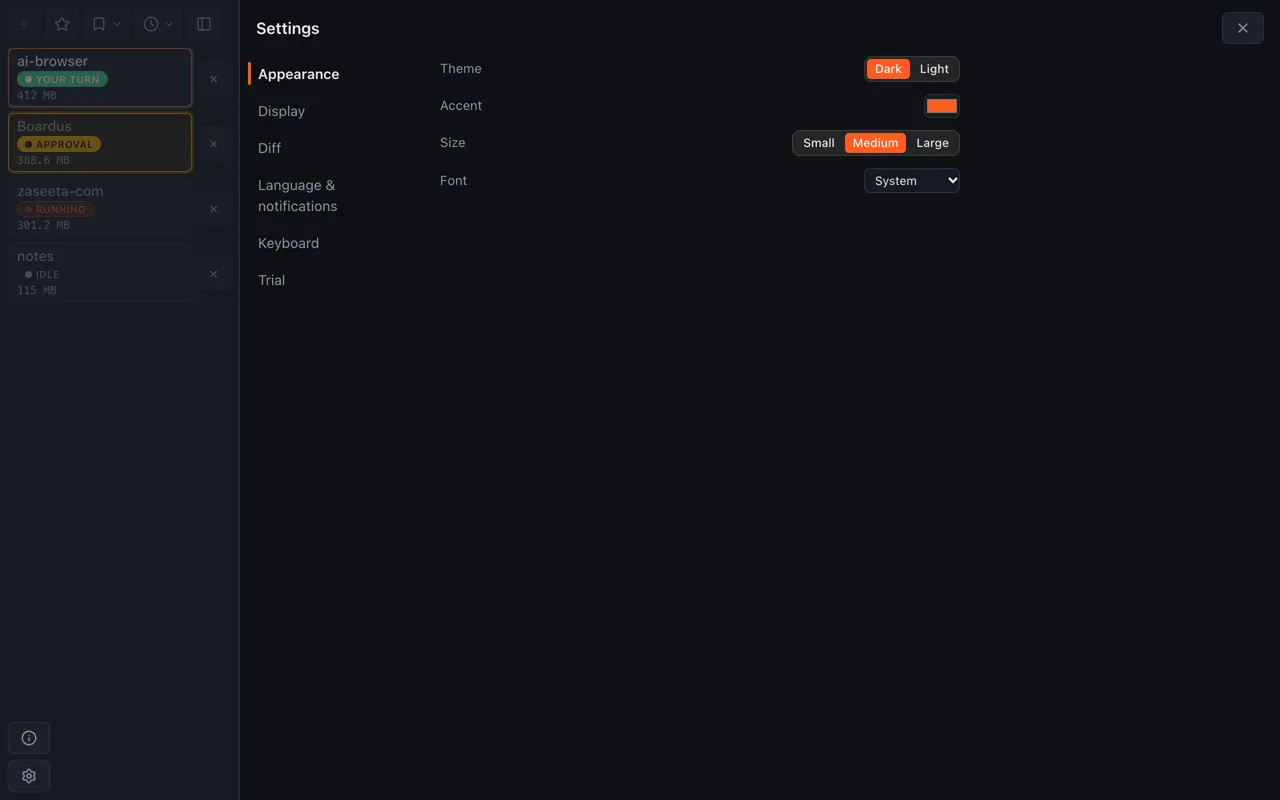
- The sections
- The settings of the chosen section
- Close
| Section | What you can change |
|---|---|
| Appearance | Theme (dark or light), accent color, text size, font |
| Display | How conversations look (colors of the answer, attention, and record tiers, text, spacing, frames and code) |
| Diff | How the diff is drawn and colored |
| Language & notifications | Display language (5.10) and the completion beep (4.5) |
| Keyboard | Shortcut keys (9.2) |
| Trial | Switches for features being tried out |
In Display, what you choose on the left shows up right away in the sample conversation on the right.
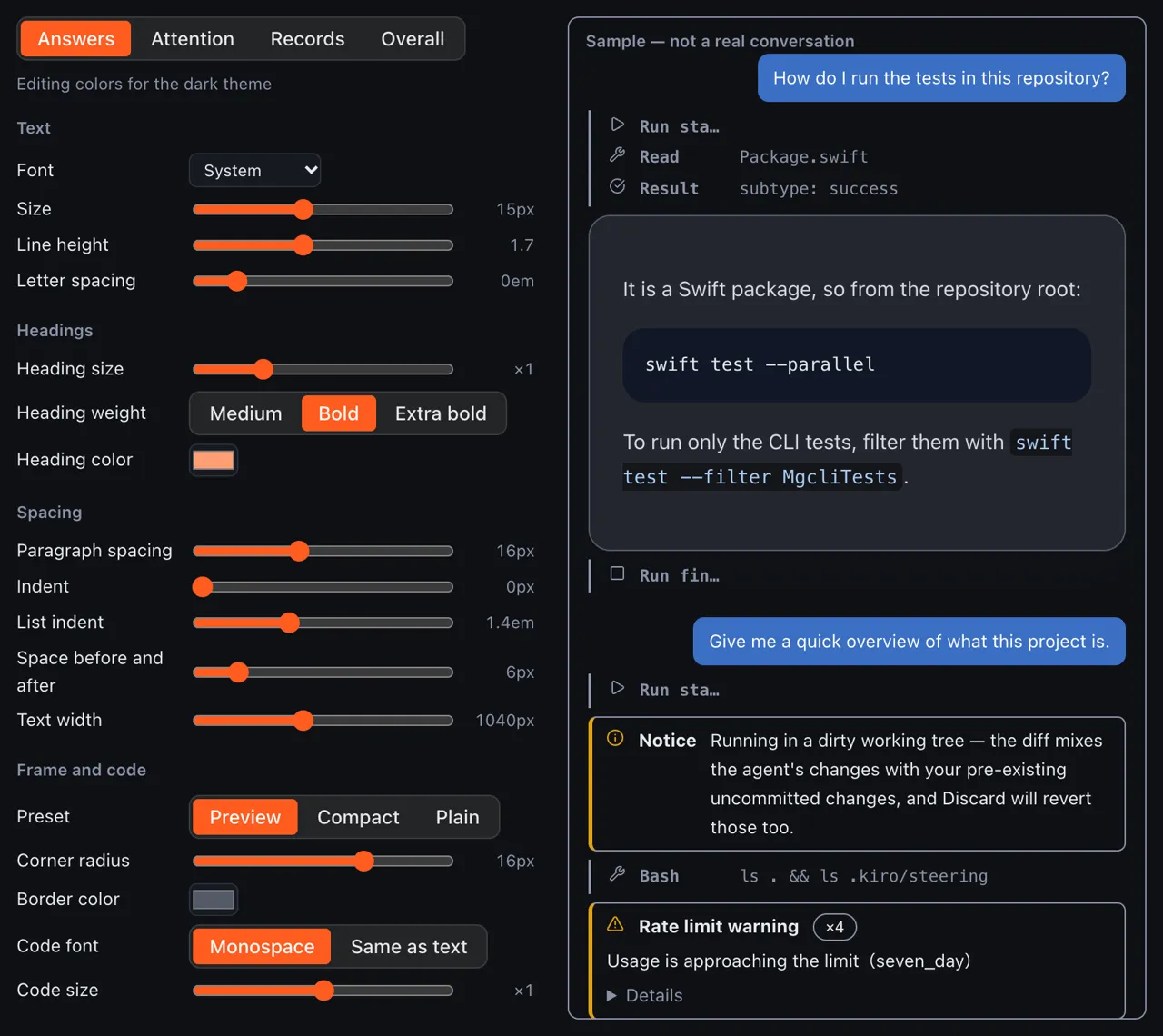
- Which tier (answers, attention, records, or overall) to style
- The sample. Not a real conversation
9.2 Keyboard shortcuts
You can change the keys for these 13 actions under Keyboard in Settings: click a key, then press the new combination. Each key must include ⌘, except ⌃ with Tab.
| Action | Default key |
|---|---|
| Open Settings | ⌘, |
| New tab | ⌘T |
| Close tab | ⌘W |
| Next tab | ⌃Tab |
| Previous tab | ⌃⇧Tab |
| Bookmark current folder | ⌘D |
| Show bookmarks | ⌥⌘B |
| Show recent folders | ⇧⌘J |
| Go to chat input | ⌘L |
| Clear chat | ⌘N |
| Attach image | ⇧⌘A |
| Take screenshot and attach | ⇧⌘S |
| Show / hide the help panel | ⇧⌘/ |
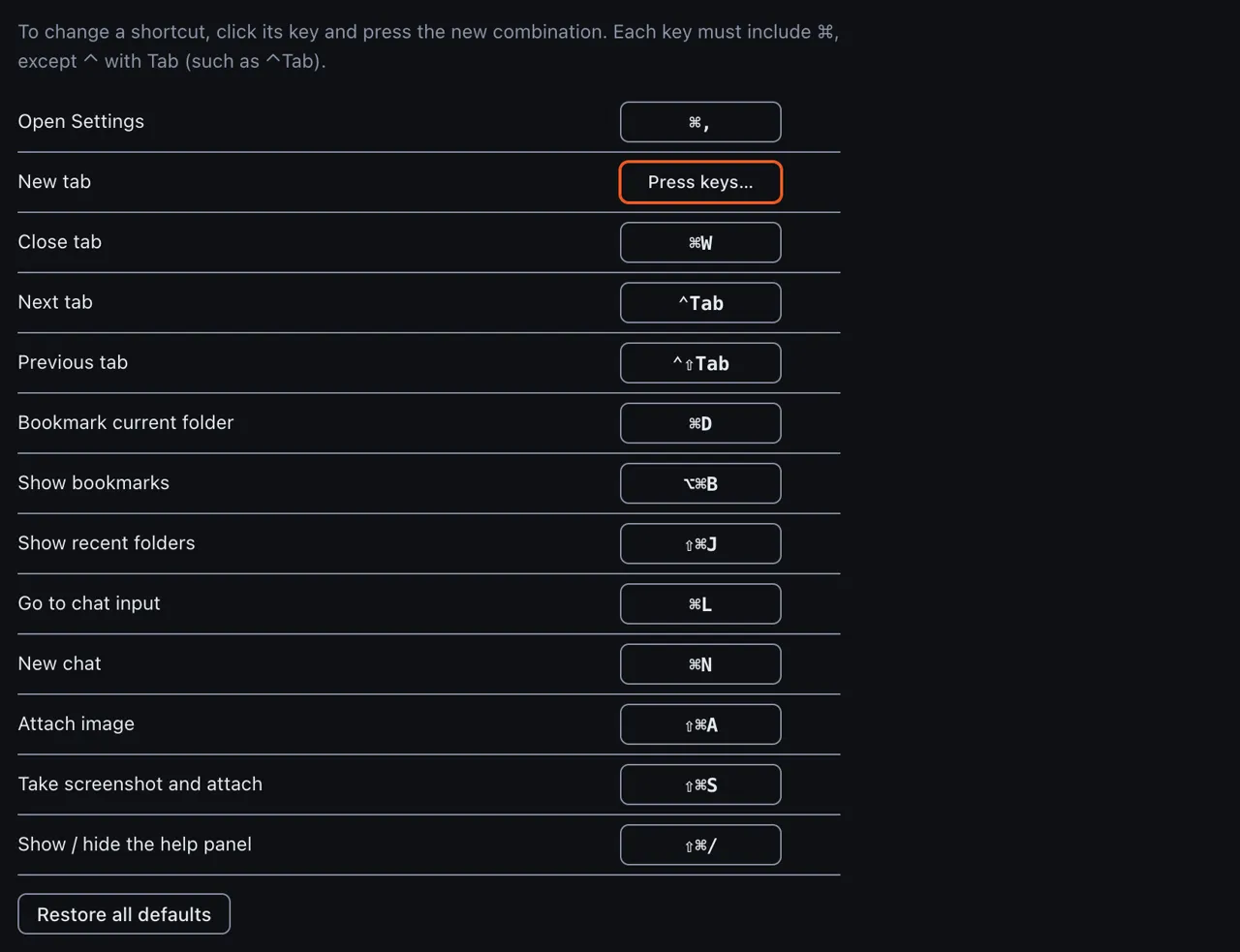
- The row waiting for the new keys
- Restore all defaults
These keys in the input box can't be changed.
| Key | Action |
|---|---|
| ⌘Enter | Send |
| ⇧⌘Enter | Send & next |
| / | At the start of the message: command suggestions |
| ! | At the start of the message: run in terminal |
| ↑ ↓ | Move in suggestions |
| Tab | Accept suggestion |
| Enter | Accept command suggestion |
| Esc | Close suggestions |
| Hold Esc | Talk while held (5.4) |
9.3 The help panel
The (i) at the bottom left (⇧⌘/) opens the help panel on the right, where the permission and trust rules and the key tables are always at hand.
Choose Help → Aibex User Guide in the menu bar to open this guide in your browser: the Japanese page when macOS is set to Japanese, the English page otherwise.
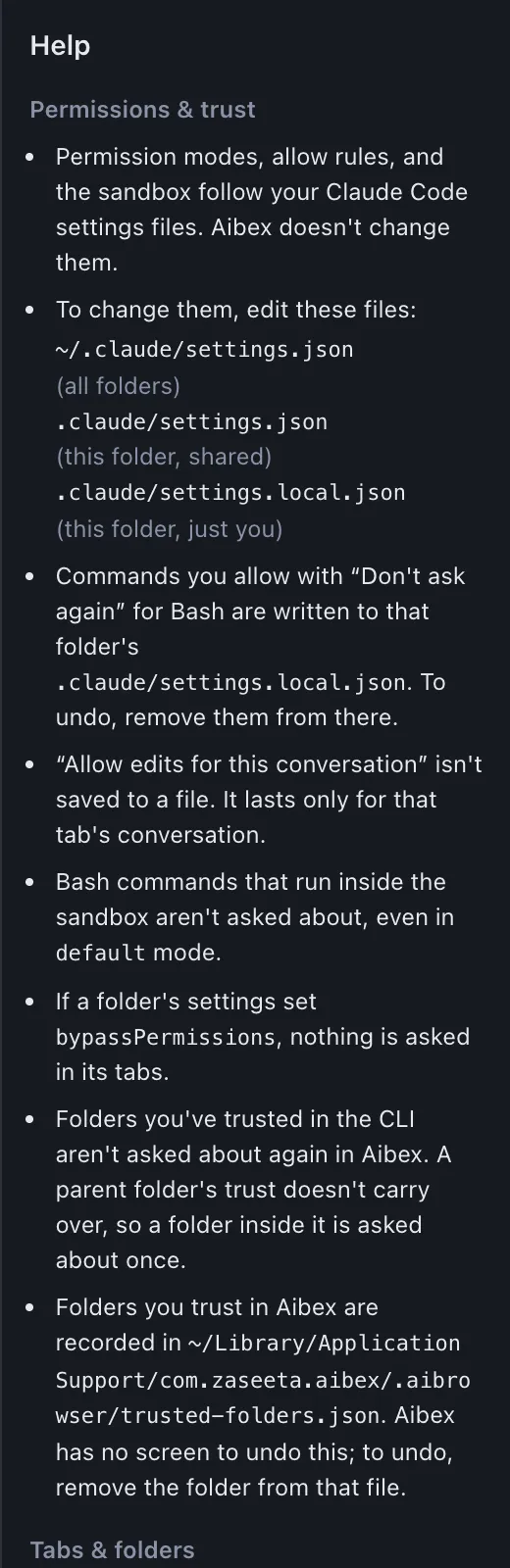
- Permissions & trust: which files decide the permission rules
- The key tables
10. Updates and the beta
10.1 Automatic updates
Aibex checks for new versions and downloads them by itself. When one is ready, a banner appears at the top; click Restart to Update to relaunch with the new version. You can also check at once with Aibex › Check for Updates… in the menu.

10.2 When the beta expires
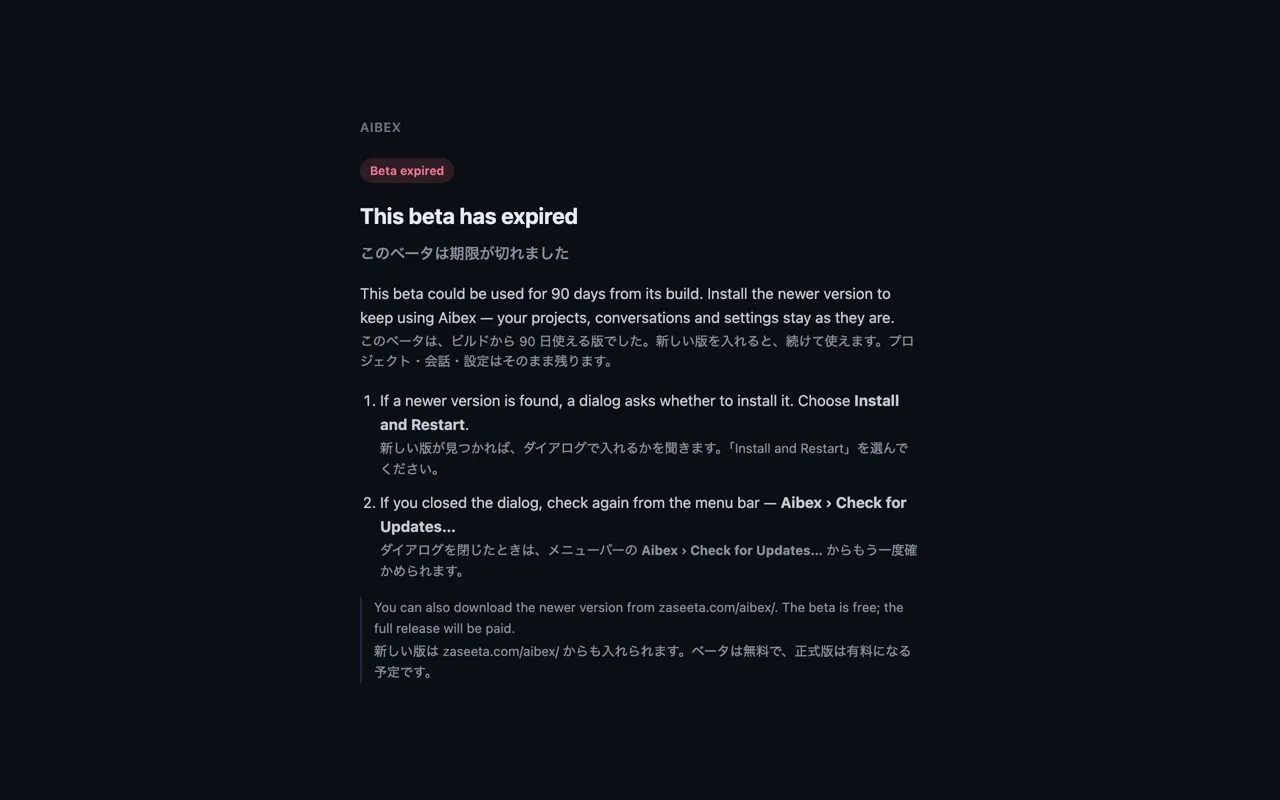
From 14 days before the expiry date, a banner shows the days left and the date. Check for Updates looks for a newer version, which extends the beta.

Once the beta has expired, a guidance screen appears at launch and Aibex looks for a newer version.
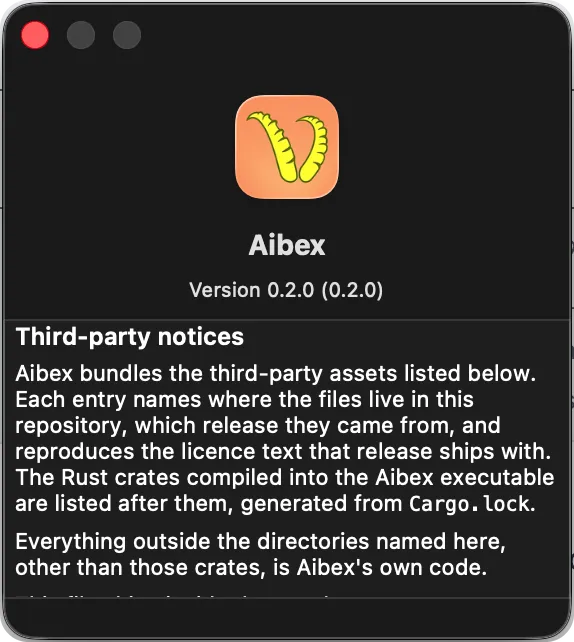
10.3 Version and notices
Aibex › About Aibex in the menu shows the version and the notices for the third-party software Aibex uses.
10.4 Quitting while the AI is working
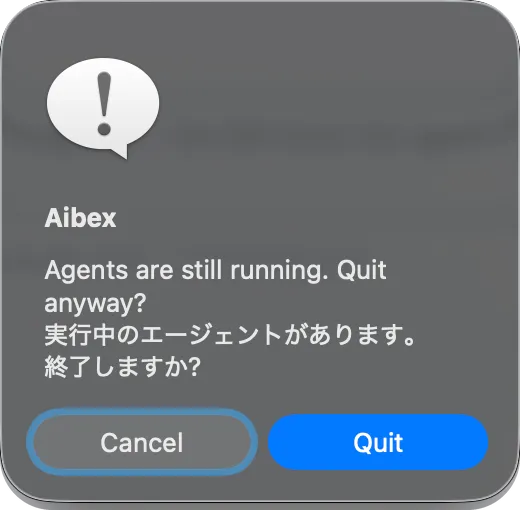
If you quit (⌘Q or Quit Aibex) while a tab is running or waiting for approval, Aibex asks first. Choosing Quit stops the running AI.
11. Troubleshooting
11.1 Startup guidance
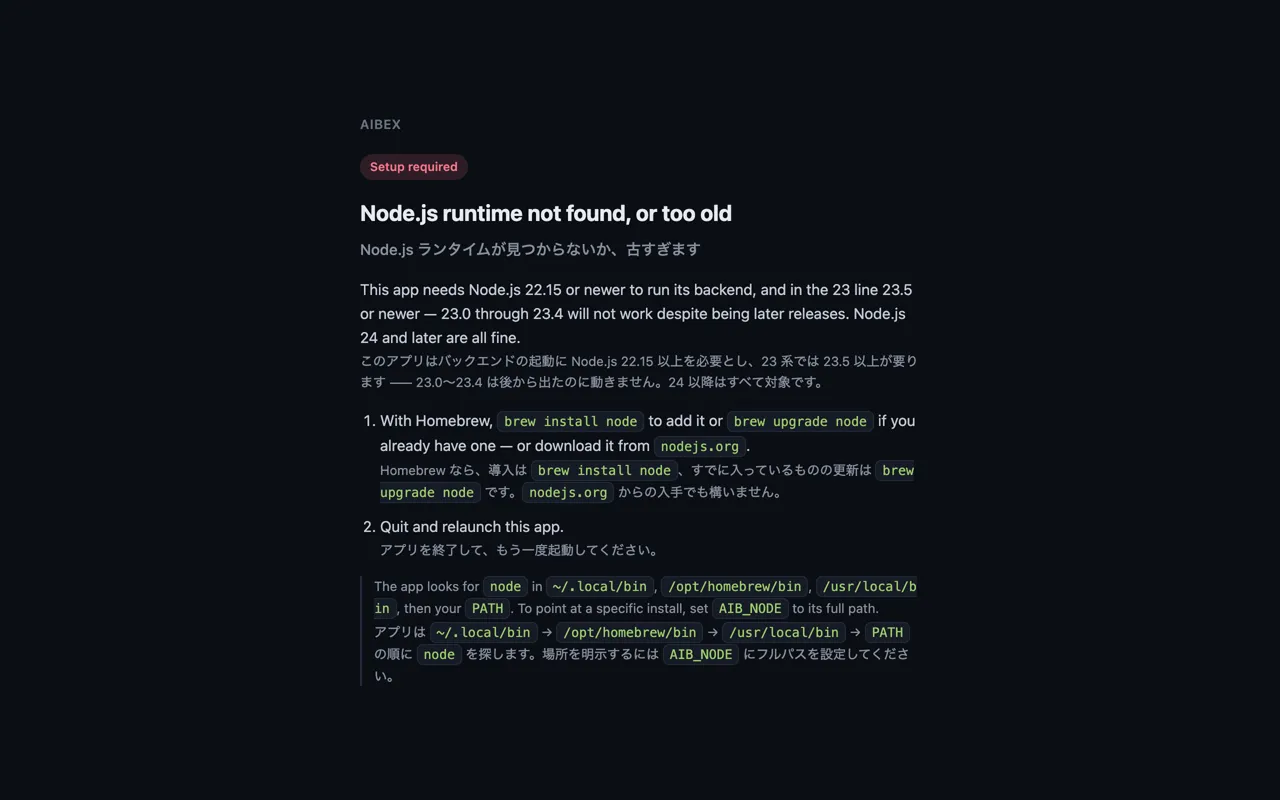
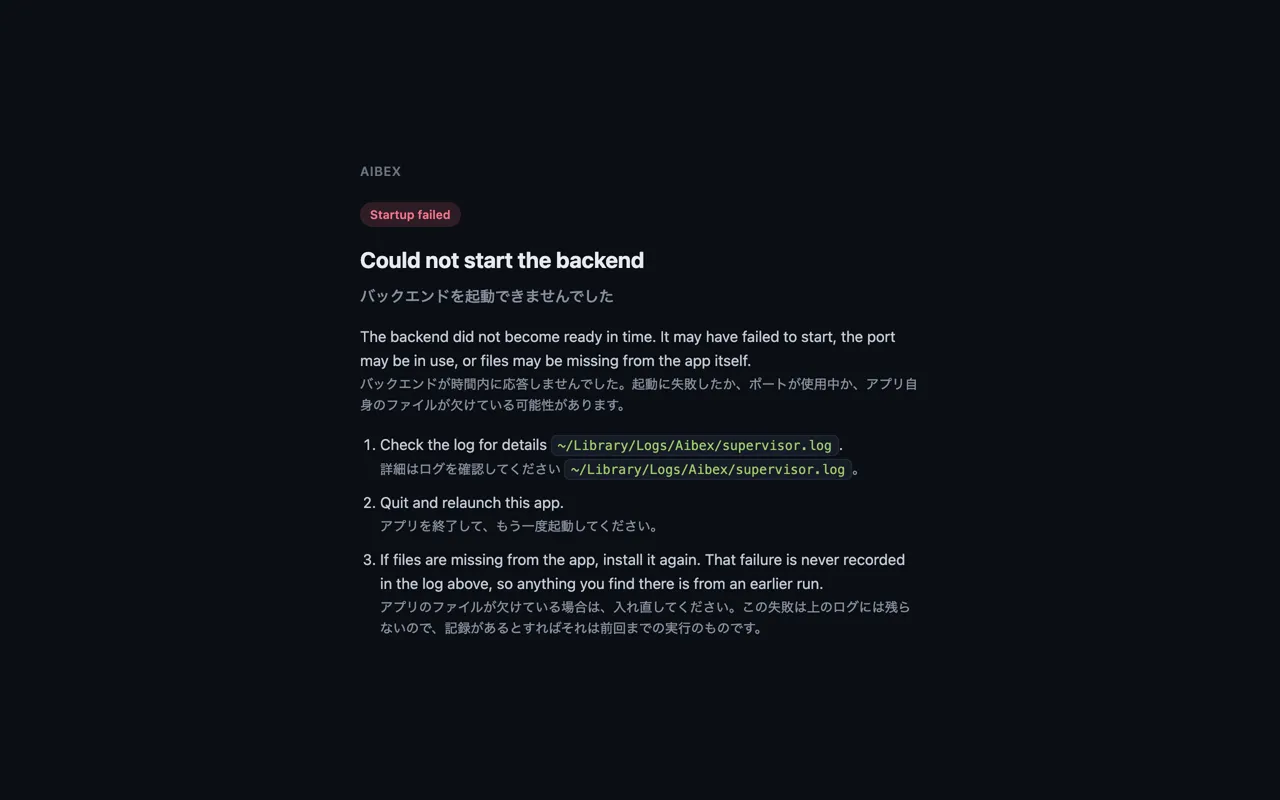
If something is missing at startup, one of these guidance screens appears. Each is written in both English and Japanese.
| Screen | Why | What to do |
|---|---|---|
| Node.js runtime not found, or too old | node is missing or older than 22.15 (on 23.x, older than 23.5) | Install or upgrade it, for example with brew install node, then relaunch Aibex |
| Claude CLI not found | claude can't be found | Install Claude Code. "Start anyway" opens Aibex, but the AI won't run |
| Agent runtime not installed yet | You haven't agreed to fetch the runtime | Agree in the dialog, or start it from Download Agent Runtime… in the menu |
| Could not start the backend | Aibex's internal service didn't start (the port is in use, files are missing, and so on) | Quit and relaunch Aibex. If that doesn't help, install it again |

11.2 Known issues
There are no known issues in this version. If you find one, please report it in the GitHub Issues.
11.3 When a tab stops
If a tab's internal service stops, its badge reads "Crashed" and a Restart button appears. Click it to reopen the tab in the same folder.
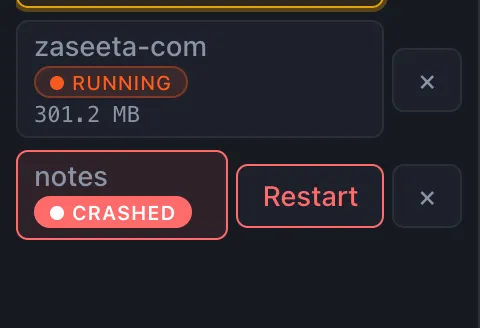
- The Crashed badge
- Restart
11.4 When push to talk can't listen
When push to talk can't listen, the reason and how to fix it appear below the input box (in a line comment box, to the left of Send). The button stays clickable, so press it again once you've fixed the cause (5.4).
| Message | Why |
|---|---|
| Microphone access is off. Turn on Aibex in System Settings › Privacy & Security › Microphone. | Aibex isn't allowed to use the microphone (for example, you declined when macOS first asked) |
| No microphone found. Choose one in System Settings › Sound › Input. | There is no microphone to listen with |
| Couldn't prepare speech recognition. Connect to the internet and try again. | The speech model for the language couldn't be downloaded (for example, the Mac was offline the first time) |
| The voice input component is missing. Reinstall Aibex. | The part of Aibex that listens is missing |
| Couldn't start voice input. Try again. If it keeps failing, restart Aibex. | Something else kept it from starting |
12. FAQ and support
Does Aibex change my Claude Code settings?
Aibex only reads Claude Code's settings files. The one exception is choosing "Don't ask again" on an approval bar: it adds the rule shown on the bar to the file named there. For a Bash command, that is usually the folder's .claude/settings.local.json (5.7).
Where does Aibex keep its data?
These are kept in ~/Library/Application Support/com.zaseeta.aibex/.aibrowser/:
- Conversation records (History)
- Bookmarks and recent folders
- The folder trust record
The runtime is in ~/Library/Application Support/com.zaseeta.aibex/runtime.
Getting help
Report problems and requests in Issues on GitHub.